
Working process of MS Access to My SQL database converter software
Working with Software
MS Access to MySQL database converter utility precisely converts bulk database records (as created in MS Access database) into MySQL database server in just few minutes. You can easily convert the source database records into destination database server without any data loss.
Select Source and Destination Database Server
Whenever you run MS Access to MySQL database converter, the following screen will be appeared:
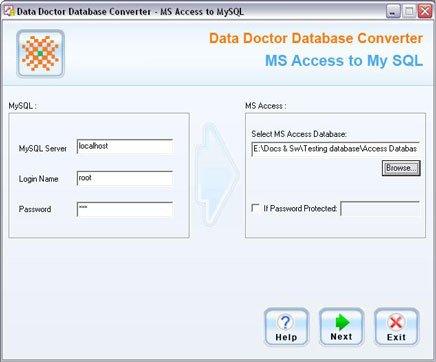
On left panel of screen, you need to connect with MySQL database server in which you want to convert your database record.
- If you run database converter software on local computer then MySQL Server name will be “localhost” or if you run the software on remote server then MySQL Server name will be according to server name.
-
To connect MySQL server, you need to enter Login name and Password which is specified at the time of MySQL Server installation in your computer.
On right panel of screen, you need to connect with MS Access database server to convert your source database record.
- Select MS Access Database
Browse the MS Access database record which is to be converted.
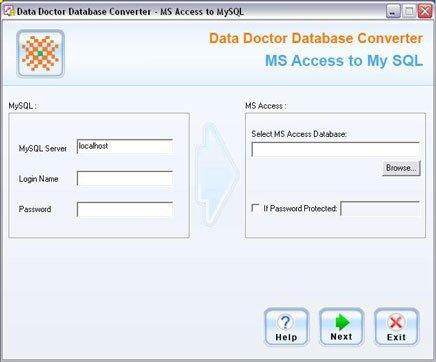
If selected MS Access database is password protected then click on the check box “If Password Protected”, and enter the password of selected database record.
After connecting Source (MS Access) and Destination (MySQL) database server, click on “Next” button to continue the database conversion process.
